
How to Cancel Spotify Premium Step by Step Guide (2026)
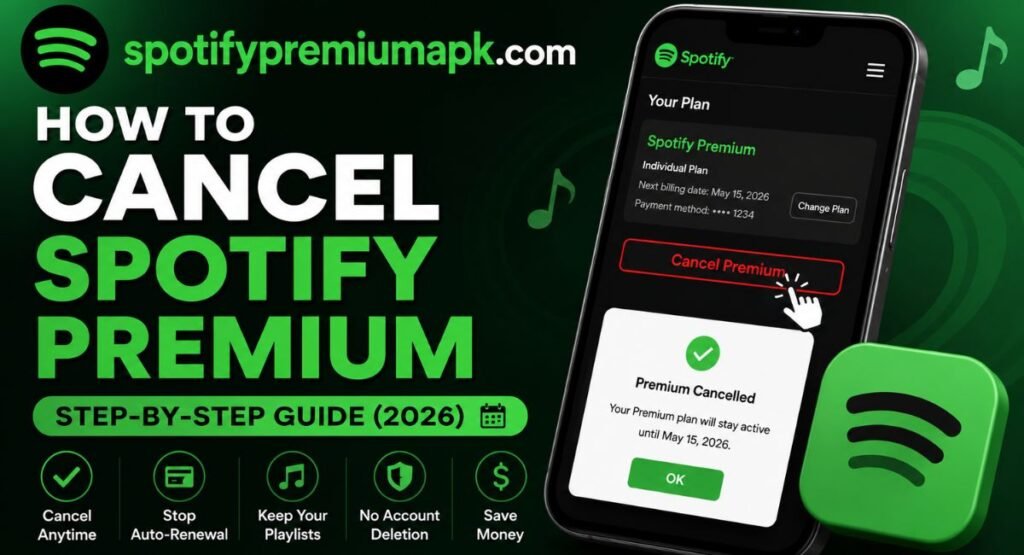
If you no longer want to pay for Spotify Premium, canceling your subscription is quick and simple. Whether you subscribed through Spotify, Google Play, Apple App Store, or a mobile carrier, the cancellation steps are slightly different.
This guide explains how to cancel Spotify Premium on every platform, what happens after cancellation, how to stop automatic renewal, and answers the most common questions users have before canceling. You’ll also learn whether you’ll lose playlists, downloaded music, or Premium features after your subscription ends.
Can You Cancel Spotify Premium Anytime?
Yes. Spotify allows you to cancel your Premium subscription whenever you want. After cancellation, you keep Premium benefits until the end of your current billing period. Once your billing cycle expires, your account automatically switches back to the free version without deleting your playlists, liked songs, or account data.
The cancellation process depends on where you purchased Spotify Premium. If you subscribed directly through Spotify, you must cancel from your Spotify account. If you purchased through Apple App Store, Google Play, or a mobile provider, you’ll need to cancel through that payment provider instead.
Before You Cancel Spotify Premium
Before canceling, there are a few things you should know:
- Your Premium features remain active until the next billing date.
- Your playlists, saved albums, and liked songs stay in your account.
- Downloaded offline music becomes unavailable after Premium expires.
- Your account automatically changes to Spotify Free.
- You can upgrade back to Premium whenever you want.
If you’re canceling because of cost, Spotify sometimes offers discounts before confirming cancellation, especially for individual plans.
How to Cancel Spotify Premium on the Spotify Website
If you subscribed directly through Spotify using a debit card, credit card, or PayPal, the easiest way to cancel your Premium plan is from the Spotify website. The process only takes a few minutes and your Premium benefits remain active until your current billing period ends.
H3: Step 1: Sign In to Your Spotify Account
Open your preferred web browser and visit the Spotify Account page. Log in using the email address, username, or social account linked to your Spotify Premium subscription.
Make sure you’re signing into the correct account, especially if you have multiple Spotify accounts.
Step 2: Open Your Account Settings
After signing in, click your profile picture in the top-right corner and select Account. This opens your account dashboard where you can view your subscription details, payment method, and billing information.
Step 3: Go to Your Plan
Scroll down until you find the Your Plan section. Here you’ll see:
- Your current Spotify Premium plan
- Next billing date
- Payment method
- Renewal status
Click Manage Your Plan or Change Plan to continue.
Step 4: Select Cancel Premium
Scroll to the bottom of the available plans until you find the Spotify Free option.
Click Cancel Premium.
Spotify may show a special discount or ask why you’re leaving. If you still want to cancel, simply continue and confirm your decision.
Step 5: Confirm the Cancellation
After confirming, Spotify displays a message showing the exact date your Premium subscription will end.
You’ll also receive a confirmation email for your records.
Until that billing date arrives, you can continue using all Premium features including:
- Ad-free listening
- Offline downloads
- Unlimited skips
- High-quality audio
- Background playback
Once the subscription expires, your account automatically switches to Spotify Free.
How to Cancel Spotify Premium on Android (Google Play)
If your Spotify Premium subscription is billed through Google Play, you must cancel it from your Google account instead of the Spotify website.
Follow These Steps
- Open the Google Play Store.
- Tap your profile icon.
- Select Payments & subscriptions.
- Tap Subscriptions.
- Choose Spotify.
- Tap Cancel Subscription.
- Confirm your cancellation.
Google will stop future billing, but you’ll continue enjoying Spotify Premium until the current subscription period ends.
Tip: If Spotify doesn’t appear under your Google Play subscriptions, your Premium plan is probably billed directly through Spotify or another payment provider.
How to Cancel Spotify Premium on iPhone (App Store)
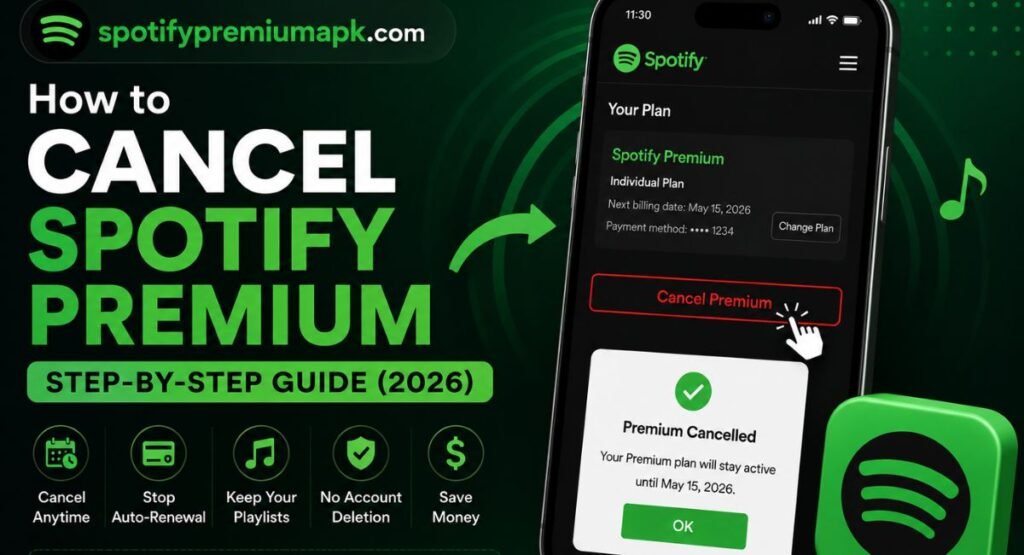
If you purchased Spotify Premium through Apple, your subscription is managed by the App Store. That means you cannot cancel it from Spotify’s website.
Cancel Through Apple
- Open Settings on your iPhone or iPad.
- Tap your Apple ID at the top.
- Select Subscriptions.
- Tap Spotify.
- Choose Cancel Subscription.
- Confirm your cancellation.
Your Spotify Premium membership remains active until Apple’s billing cycle expires.
Even after cancellation, your playlists, saved music, and account information remain available when your account switches back to Spotify Free.
What Happens After You Cancel Spotify Premium?
Many users worry they’ll immediately lose access after canceling, but that’s not how Spotify works.
Once you cancel:
- Premium remains active until your next billing date.
- Your playlists stay exactly as they are.
- Saved songs remain in your library.
- Your account is not deleted.
- You can subscribe again anytime.
After your Premium expires, your account switches to Spotify Free.
Features You’ll Lose
When your Premium subscription ends, you’ll lose access to:
- Ad-free listening
- Offline downloads
- Unlimited skips
- Highest audio quality
- Background playback on mobile
- Premium-only listening features
However, your account, playlists, liked songs, and followers remain completely safe.
Can You Get a Refund After Canceling Spotify Premium?
Spotify generally doesn’t provide refunds for partially used subscription periods.
If you’ve already paid for the month, you’ll continue using Premium until the billing cycle ends instead of receiving a refund.
Refunds are usually considered only in special situations such as:
- Accidental duplicate payments
- Unauthorized transactions
- Billing errors
If you believe you’ve been charged incorrectly, contact Spotify Support as soon as possible.
Why Can’t I Cancel Spotify Premium?
Sometimes users don’t see the Cancel Premium button. This usually happens because the subscription is managed by another company instead of Spotify.
Common reasons include:
- Your subscription is billed through Apple.
- You subscribed using Google Play.
- Your mobile carrier pays for Spotify.
- Your internet provider includes Spotify Premium.
- You’re logged into the wrong Spotify account.
How to Fix It
First, check your Payment section inside your Spotify Account.
It will show who manages your subscription.
If your payment is handled by Apple, Google Play, or your mobile carrier, you’ll need to cancel directly through that provider.
Can You Pause Spotify Premium Instead of Canceling?
In some countries, Spotify allows eligible Individual Premium users to pause their subscription instead of canceling it completely.
Pausing temporarily stops billing while preserving your subscription settings. However, this option isn’t available for every plan or region.
If you don’t see the Pause Premium option, you’ll need to cancel your subscription normally.
Tips Before Canceling Spotify Premium
Before ending your subscription, consider these simple tips:
- Download any music you still need before Premium expires.
- Check your renewal date to avoid unnecessary charges.
- Save your playlists—they won’t be deleted.
- Verify which payment provider manages your subscription.
- Watch for Spotify discount offers before confirming cancellation.
These small checks can help you avoid billing surprises later.
FAQs
How do I cancel Spotify Premium on iPhone?
If you subscribed through the App Store, open Settings > Apple ID > Subscriptions > Spotify, then tap Cancel Subscription. Your Premium benefits remain active until your current billing period ends.
How do I cancel Spotify Premium on Android?
If your subscription is billed through Google Play, open the Google Play Store, go to Payments & Subscriptions > Subscriptions, select Spotify, and tap Cancel Subscription.
How do I cancel a Spotify Premium free trial?
You can cancel your free trial before it ends by visiting your Spotify account or your payment provider’s subscription settings. If you cancel before the trial expires, you won’t be charged for the next billing cycle.
Can I cancel Spotify Premium without logging in?
No. You must sign in to the Spotify account that has the active Premium subscription. If you can’t access your account, reset your password or contact Spotify Support for assistance.
Can I get a refund after canceling Spotify Premium?
In most cases, Spotify doesn’t offer refunds for unused subscription time. However, if you were charged by mistake or experienced a billing issue, you can contact Spotify Support to request a refund.
How do I cancel an Individual Spotify Premium plan?
Sign in to your Spotify account, open Manage Your Plan, select Change Plan, then choose Cancel Premium. Your Individual plan stays active until your next billing date.
Why can’t I cancel Spotify Premium?
If you don’t see the cancellation option, your subscription may be managed by Apple, Google Play, your mobile carrier, or another partner. Check your payment details in your Spotify account to find the correct provider for cancellation.
Conclusion
Canceling Spotify Premium is simple once you know where your subscription is billed. Whether you subscribed through Spotify, Google Play, or the Apple App Store, following the correct cancellation method ensures you won’t be charged again. Even after canceling, you’ll keep your playlists, saved music, and account while enjoying Premium features until your current billing period ends. If you decide to return later, you can reactivate Spotify Premium anytime with the same account.

One Comment